
Finding, importing and converting: the thankless jobs of building any spreadsheet, whatever software you use. I deal with them all the time in Excel.
As an accountant, I’ve watched accounting software change a lot over the years. I don’t mean the heavyweights like SAP or Sage 200; let’s leave those to the multinationals. I mean the kind of software your local butcher can afford. Most of it now pulls in daily exchange rates on its own. Google Sheets got there early with the GOOGLEFINANCE function: one formula, and the latest exchange rate or share price lands straight in your cell, with no more looking up and typing in numbers by hand.
Excel took its time to catch up. The Stocks data type started bringing live quotes into Microsoft 365 around 2019, and the STOCKHISTORY function, for price history, only followed in 2020 and 2021. Google Sheets had been doing the job for years by then.
In short
GOOGLEFINANCEpulls exchange rates, share prices and stock market indices into Google Sheets, and keeps them up to date.- Exchange rate:
=GOOGLEFINANCE("CURRENCY:USDGBP"). Share or index:=GOOGLEFINANCE("EXCHANGE:TICKER", "price"). - ISIN codes don’t work: you need the ticker and its exchange (LON:VOD, INDEXFTSE:UKX…).
- Free and handy, but some quotes are delayed by up to 20 minutes, London prices are in pence, and Google doesn’t vouch for the data.
Getting an exchange rate with GOOGLEFINANCE
If you need to convert currencies, say to keep track of income or investments abroad, keeping your exchange rates up to date is a real chore. In Google Sheets, you can stop worrying about it.
Type the formula in any cell and it returns the latest published rate. Your calculations stay current, and you no longer have to hunt down the rate for whichever day you need.
All it takes is the foreign currency followed by your base currency (the one your file or your books are kept in). For example, to turn US dollars into pounds sterling:
=GOOGLEFINANCE("CURRENCY:USDGBP")For any other pair, the pattern is always the same, with the three-letter currency codes stuck together (GBP, EUR, USD, CHF, JPY…):
=GOOGLEFINANCE("CURRENCY:[foreign currency][base currency]")Then you just multiply. If cell A2 holds an amount in euros, this gives you its value in pounds:
=A2*GOOGLEFINANCE("CURRENCY:EURGBP")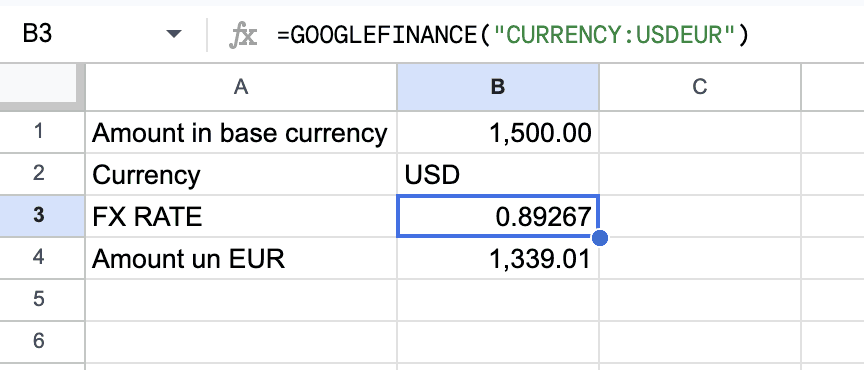
Accountants will like this one: you can also ask for the rate on a given date, handy for a year-end closing rate. Historical data comes back as a small table with headers, so INDEX picks out the value itself:
=INDEX(GOOGLEFINANCE("CURRENCY:USDGBP", "price", DATE(2026,3,31)), 2, 2)One detail that trips people up: in a spreadsheet set to English (UK or US), arguments are separated by commas. If your spreadsheet uses a comma as the decimal separator (France, Belgium and much of Europe), use semicolons instead.
Share prices and stock market indices
Is GOOGLEFINANCE just for exchange rates? Not at all! The same formula returns a whole range of financial data on listed shares and on entire indices.
You give it the security you want (exchange and ticker) and the piece of data you’re after:
=GOOGLEFINANCE("[exchange:ticker]", "[attribute]")Got the idea? Let’s try it with the BEL 20, the Brussels index (I’m Belgian, I couldn’t resist), and the current value, the price attribute:
=GOOGLEFINANCE("INDEXEURO:BEL20", "price")That’s today’s value. For yesterday’s close, swap price for closeyest. And if you want the day’s change as a percentage, there’s no need for a rule of three: changepct does it for you.
Change the code and the formula returns other indices. The ones you’re most likely to need:
- FTSE 100:
INDEXFTSE:UKX - S&P 500:
INDEXSP:.INX - Dow Jones:
INDEXDJX:.DJI - CAC 40:
INDEXEURO:PX1(the old “CAC40” code no longer works) - BEL 20:
INDEXEURO:BEL20
Shares work the same way. For Alphabet (Google’s parent company, as we’re supposed to call it now), listed on the Nasdaq:
=GOOGLEFINANCE("NASDAQ:GOOG", "price")Always put the exchange in front of the ticker. Google’s own help page says so: without it, the function guesses the exchange, and the guess isn’t always the one you wanted. A few common prefixes: LON: for the London Stock Exchange, NYSE: and NASDAQ: in the US, EPA: for Euronext Paris, EBR: for Brussels and AMS: for Amsterdam.
London prices are in pence
A classic trap if you follow UK shares: the London Stock Exchange quotes most prices in pence (GBX), not pounds. A share shown at 520 costs £5.20, not £520. To get pounds, divide by 100:
=GOOGLEFINANCE("LON:VOD", "price")/100Not sure which unit a security uses? Look it up on Google Finance: the quote page shows “GBX” or “GBP” next to the price.
Why GOOGLEFINANCE doesn’t work with an ISIN
It’s the most common question about this formula: can you just paste in an ISIN, the 12-character code your broker or fund factsheet shows (starting with GB, IE, FR…)? Unfortunately not. GOOGLEFINANCE only understands an exchange code and a ticker.
The easiest way to find them: search for the company or fund name on Google Finance. The quote page shows the ticker and the exchange the other way round, for example “VOD • LON”. In your formula, that becomes LON:VOD. The same goes for ETFs listed in Europe: an ETF shown as “ESE • EPA” becomes EPA:ESE.
Bear in mind that not everything is covered. Google’s help page warns that the function doesn’t support most international exchanges, and for traditional mutual funds, Google only lists funds from the US and India. UK unit trusts and OEICs therefore won’t show up, even though ETFs and investment trusts listed in London do.
All the GOOGLEFINANCE attributes
price and closeyest aren’t the only attributes you can use. Here’s the full list for shares and indices at the time of writing. Have fun trying them out.
- price: the latest price (the default if you leave the attribute out).
- priceopen: the price at the market open.
- high: the day’s highest price.
- low: the day’s lowest price.
- volume: the number of shares traded today.
- volumeavg: the average daily trading volume.
- marketcap: the company’s market capitalisation.
- tradetime: the time of the last trade.
- datadelay: how far behind the “real-time” data is.
- pe: the price/earnings ratio.
- eps: earnings per share.
- high52 and low52: the highest and lowest prices over the past 52 weeks.
- change: the price change since the previous day’s close.
- changepct: the same change, as a percentage.
- closeyest: the previous day’s closing price.
- beta: the beta value (how much the share moves compared with the market).
- shares: the number of shares outstanding.
- currency: the currency the security is priced in.
Add a start date (and optionally an end date or a number of days) and you get price history instead: the attributes then become open, close, high, low, volume or all. For example, Alphabet’s closing prices over the last 30 days, laid out as a table you can turn into a chart:
=GOOGLEFINANCE("NASDAQ:GOOG", "close", TODAY()-30, TODAY())US and Indian mutual funds have their own attributes too (returns over various periods, expense ratio, Morningstar rating…). They’re all listed on the official GOOGLEFINANCE help page.
Would your auditor be happy with it?
One question left, and it’s the one the accountant in me always asks: where does the data come from?
According to the Google Finance disclaimer, end-of-day prices come from Morningstar, intraday data may be supplied by ICE Data Services, and corporate actions by Refinitiv. Exchange rates and cryptocurrency prices also come from Morningstar, and sector and industry data from S&P Capital IQ. Serious names, then.
“Real time”, though, depends on the market. London Stock Exchange prices and FTSE indices are real time, while Euronext (Paris, Brussels, Amsterdam) is 15 minutes behind, and exchange rates around 3 minutes. Google’s help page sums it up as delayed by up to 20 minutes.
And the small print matters. The data is provided “as is”, for information only, not for trading or advice, and Google doesn’t verify it. Google also states that it isn’t meant for financial industry professionals, or for professional use at other companies: that kind of use may require a licence from the data provider. Fine for your personal portfolio or a quick check, then, but for your company’s books, your auditor will probably want an official rate source, such as your central bank’s published rates.
GOOGLEFINANCE isn’t the only “connected” formula in Google Sheets, by the way: GOOGLETRANSLATE can translate your text into more than 100 languages.
All these examples are gathered in my Google Sheets template: make a copy and change the blue cells to try your own amount or date.
Is it the right tool for you? Your call!




Leave a Reply