We trust Google Photos with all our memories: seaside holidays, family dinners, even that botched selfie outside Luxembourg station. It’s convenient and looks free… but our pictures are never really ours. They feed Google’s algorithms, which often know more about our lives than our own families. So isn’t it time to make a change and migrate your photos from Google Photos to Proton Drive?
I make no secret of my soft spot for this Swiss, European alternative, and I use Proton for my email too. If you would like to do the same with your emails, Proton now lets you connect your Gmail account to Proton Mail and switch gradually, with one limit I explain in that article.
So how about taking back control? With Proton Drive, you can move your photos from Google Photos to Proton Drive and keep them in a real digital vault: end-to-end encryption, servers in Switzerland and zero targeted ads. In short, your memories stay yours.
The icing on the cake: thanks to Proton Drive’s Windows app, the import is almost a one-click job. The export from Google still needs a bit of elbow grease. You can’t have it all.
In this article, I’ll explain why and, above all, how to move your albums from Google Photos to Proton Drive easily, without losing your photos or your peace of mind.
In short
- Export your photos with Google Takeout, ticking only Google Photos and choosing 50 GB archives to limit the number of files.
- On Windows, the Proton Drive app imports the unzipped folder and recreates your albums (Photos import menu).
- On a Mac, Linux or a Chromebook, you drag and drop the folders into the web version, and albums aren’t recreated.
- Proton’s limits: 500 albums and 10,000 photos per album. Beyond that, the import stops.
Updated October 2026: automatic photo import is still only available in the Windows app.
Why move from Google Photos to Proton Drive?
Google Photos used to be the all-you-can-eat buffet of online storage: free, unlimited and open to everyone. We threw our snaps in without a second thought, convinced it would last for ever. But the feast ended in June 2021: every new photo now eats into your Google account’s shared storage (15 GB by default). Beyond that, you have to pay up with Google One.
On top of that, there’s another detail that stings: Google doesn’t just keep your photos, it analyses them. Faces, places, objects… everything is used to improve its services (and above all its advertising business). Your memories become raw material for AI and targeted marketing.
That’s where Proton Drive changes the game:
- End-to-end encryption: Proton can’t read your files, even if it wanted to.
- Servers mainly based in Switzerland: a jurisdiction chosen for its strict privacy laws.
- No ads, no selling of data: Proton makes its money from subscriptions, not from your private life.
- A transparent model: when it’s free, you are the product. Proton openly charges for its full service, but you’re paying for peace of mind.
Moving from Google Photos to Proton Drive isn’t just a technical operation: it’s a choice of digital sovereignty.
How to move your memories from Google Photos to Proton Drive
Before you can move your memories from Google Photos to Proton Drive, you need to get them out first. Google provides an official tool for that: Google Takeout.
1. Go to Google Takeout
Google Takeout is the service that lets you download a copy of all your Google data (not just your photos).
- Sign in with the Google account that holds your photos.
- At the top of the list of services, click Deselect all (unless you fancy unticking more than 70 services by hand), so you don’t end up with a huge file containing Gmail, Drive and the rest.
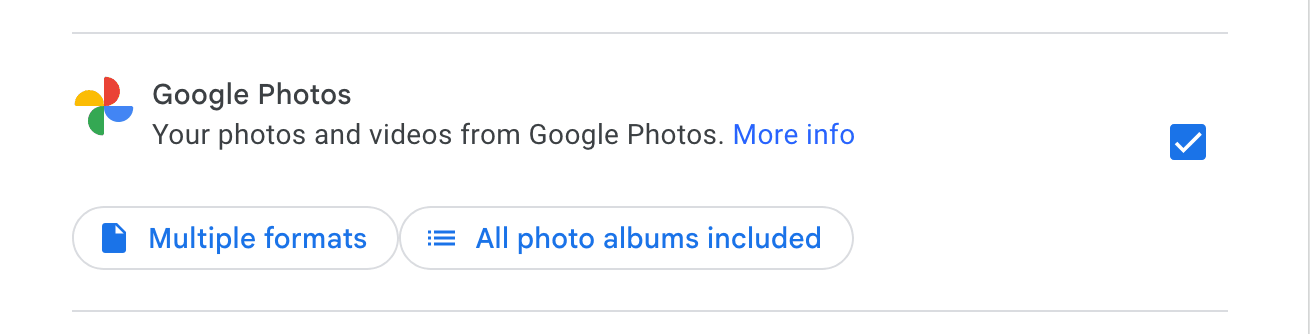
- In the list of services, tick only Google Photos.
- On that same line, you can choose which albums you want to migrate.
2. Set the archive size
This is the classic trap: by default, Google splits your data into 2 GB ZIP files. As a result, photos from the same year can end up scattered across several files… a guaranteed headache. Go for one of these instead:
- 50 GB, the largest size Google offers: a free account (15 GB) then fits in a single file.
- 10 GB if your connection is shaky: more files, but easier to download again if it drops.
3. Start the export and be patient
Click Create export. Google prepares the archive, which can take anywhere from a few minutes to several hours at worst. You’ll then receive an email with a download link. Don’t wait too long: the link is only valid for a week.
4. Import into Proton Drive with the Windows app
This is the recommended option, especially if you have thousands of photos or a long digital history behind you.
- Download and open the Proton Drive app for Windows.
- In the menu, click Photos import, then Import from Google Photos.
- Click Select folder and choose the folder you unzipped from Google Takeout. Repeat for each folder.
- The app does the rest:
- JSON files are ignored (no need to worry about them).
- Albums are recreated from your folders (for example, “2019/Holiday in Italy” becomes a Proton Drive album). Watch out: Takeout sometimes spreads photos from the same year across several folders, which then creates several albums.
- Duplicates are detected and skipped, even if the original is in the bin.
⚠️ One small limit: Proton can create up to 500 albums and accepts 10,000 photos per album. Beyond that, the import stops and the remaining photos aren’t imported, so it’s best to check how many albums you have before you start.
If you don’t use Windows (Mac, Linux, Chromebook…), automatic import isn’t available yet. Head to drive.proton.me instead:
- Open the Photos tab.
- Drag and drop your unzipped Google Photos folders.
It’s quicker, but less “smart”: albums aren’t recreated automatically. Your pictures will still appear in the timeline, sorted by date. There’s only one thing left to say at this point: well done!
Google Photos to Proton Drive: what it really changes
Moving from Google Photos to Proton Drive isn’t just a matter of clicks and .zip files to unpack. Above all, it’s a matter of trust. At Google, your memories feed algorithms; at Proton, they’re locked away in a digital vault, encrypted and inaccessible to anyone but you.
So yes, it takes a bit of time to run the exports, juggle a few folders and wait for the import. But in the end, your photos no longer train an advertising AI: they go back to what they were meant to be, personal memories and nothing more.
So if you want your holiday snaps from Barcelona or your rainy family Sundays to stay memories rather than data to be mined, the way forward is clear.
And if you’re tempted to do the same with your passwords, Proton Pass is well worth a look too.
Leave a Reply