
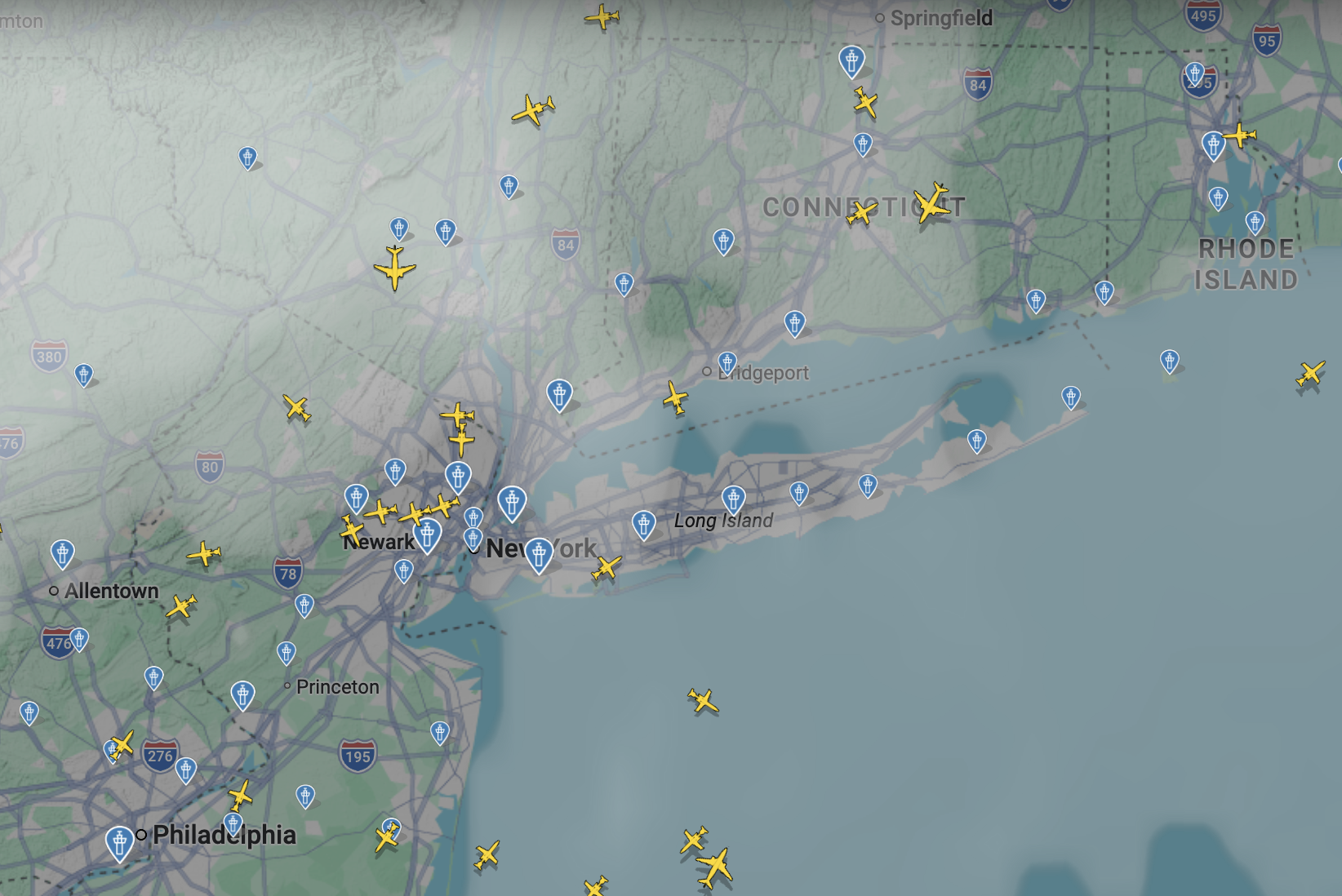
Have you ever tried to explain your travels to a friend by listing the destinations one by one? Brussels, Frankfurt, Toronto, Quebec City… and everyone gets lost very quickly. Nothing beats a map to bring a route to life. You can watch planes live on Flightradar24, but nothing beats a map of your own past trips.
That’s where Great Circle Mapper comes in. Behind its slightly vintage look lies a remarkably effective tool for drawing your flights, your stopovers and even your round-the-world trips in seconds. Whether you’re a curious traveller, an aviation geek or simply looking for a visual souvenir of your journeys, this little website can turn a list of airport codes into a clear, telling map.
In this article, I’ll show you how to use it step by step, with tips to customise your maps and share them. Spoiler: it’s much simpler than it looks, and seriously addictive.
In short
- Great Circle Mapper draws your flights on a map from airport codes:
BRU-MADfor a direct flight. - Chain codes with dashes for stopovers (
LUX-FRA-YYZ-YQB), and separate trips with a semicolon or a comma to put them all on one map. - A setting in the Markers tab shows city names instead of codes.
- Prefer something more modern? Travel-Dealz’s Flightmap and Great Circle Map are good alternatives.
Why a map?
Telling the story of a trip isn’t just about listing city or airport names. It’s about showing a path, tracing a story. A map instantly lets you visualise a journey, join the dots, and give your friends and family a clear idea of where you’ve been.
Of course, there’s always the good old paper map. But let’s be honest: who still has one to hand, apart from an old road atlas gathering dust in the glovebox?
Fortunately, the digital world offers alternatives. Among them, Great Circle Mapper is a reliable veteran. The site calculates and draws air routes as the shortest path between two airports (the famous “great circles”). With tens of thousands of airports in its database, even your most unlikely stopovers stand a good chance of being there.
Find your airport code
Before drawing a route, you need to know how to identify it. Great Circle Mapper doesn’t work with city names spelled out in full, but with airports’ IATA codes. These are the little three-letter codes you’ve probably seen on your boarding passes or luggage tags. For example:
LHRfor London Heathrow,BRUfor Brussels,CDGfor Paris Charles de Gaulle,JFKfor New York John F. Kennedy,LAXfor Los Angeles.
Not sure of the code? Don’t panic. A quick Google search will do. Just type “airport code + city name”. Most of the time, the code appears straight away at the top of the results, without even having to click.
👉 Example: search for “airport code Brussels” and you immediately get BRU.
Draw a direct flight
Now that you have your codes, it’s time to get going. Head to the Great Circle Mapper website. At the top of the page, you’ll see an input box next to a Map button. That’s where the magic happens.
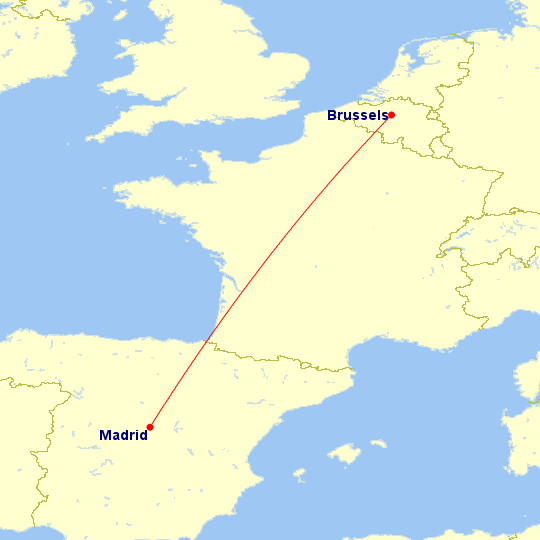
To draw a direct flight, just type the two airport codes separated by a dash. 👉 Example: between Brussels (BRU) and Madrid (MAD), type:
BRU-MADThen click Map, and a map appears straight away with a line joining the two cities. That’s it. No complicated settings, no hidden menus: a dead simple command and an instant visual result.
If you forget the dash, the site won’t understand and will return an error. Always stick to the CODE1-CODE2 format.
What you get: a red line drawn as the shortest route (the famous great circle) between your two airports. And just like that, you can illustrate a direct flight in seconds.
Draw a flight with stopovers
A direct flight is nice. But it isn’t always what your trips look like. With Great Circle Mapper, adding one or more stopovers is just as easy.
Just type the airport codes in order, separated by dashes. The site automatically joins each leg.
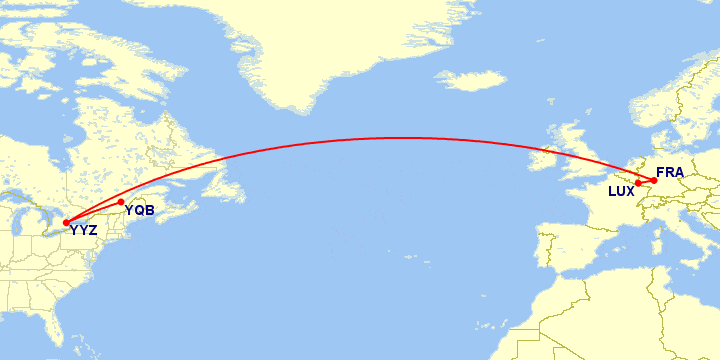
Take a trip from Luxembourg to Quebec City, with stopovers in Frankfurt and Toronto. You type:
LUX-FRA-YYZ-YQBOnce you confirm, the map shows each leg of the journey in turn:
- Luxembourg to Frankfurt
- Frankfurt to Toronto
- Toronto to Quebec City
You get an accurate picture of your whole trip, with every stopover visible at a glance.
A map of all your flights
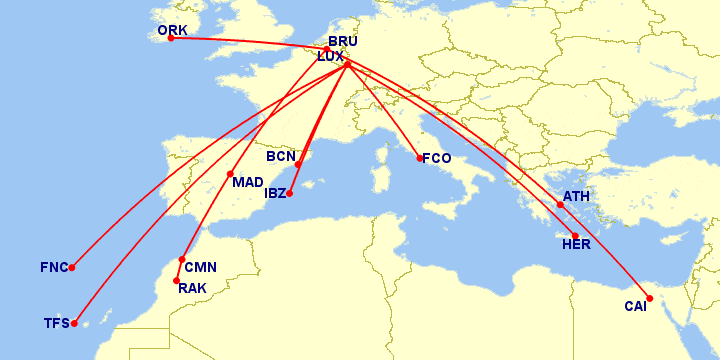
You can go further than a single trip or a route with stopovers. Why not gather all your flights on one map? It instantly gives you an overview of your past travels or of a big journey.
The principle is simple: separate each trip with a semicolon (;) or a comma. The site then understands that the previous route has ended and the next one begins. For example, to show both trips above on the same map:
BRU-MAD; LUX-FRA-YYZ-YQBBonus tip: a slash lets you draw several destinations from the same starting point. BRU-LHR/MAD/LIS draws Brussels to London, Madrid and Lisbon in one go.
Here’s what it looks like with some of my flights in Europe and North Africa:
Customise and fine-tune your map
Once your routes are drawn, you already have a nice overview of your travels. But Great Circle Mapper doesn’t stop there: it offers several options to make your maps clearer, nicer to look at or simply better suited to what you need.
For example, you can change the map background, show city names instead of airport codes, or adjust the layout to make your routes stand out. These are small tweaks, but they make all the difference if you want to share the map with friends and family, put it on a blog or keep it as a souvenir.
Show city names
One last small setting can really make your map easier to read: replacing IATA codes with city names.
By default, Great Circle Mapper only shows airport codes. That’s handy for you, since you took the time to look them up. But for your friends and family, BRU, FRA or YYZ may remain a mystery.
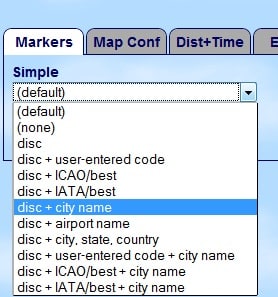
Fortunately, there’s an option to change that. In the lower part of the page, to the right of the input box, you’ll find the map settings. Click the first tab, called Markers.
Just below “Simple”, you’ll find a drop-down menu. Choose disc + city name.
The result: your routes now appear with the names of the cities. The site has been in English from day one, so for once, English speakers have a head start.
The modern lookalikes
If Great Circle Mapper’s interface has a slightly 1990s feel that makes you smile, some people may prefer more modern and more visual alternatives. Two tools stand out: Flightmap and Great Circle Map.
Flightmap, developed by Travel-Dealz, takes a more graphic and customisable approach. You can colour each route, give different colours to departure and arrival airports, or even draw distance circles around an airport. The result is clean, can be downloaded (including as an SVG that stays sharp at any size), and is perfect if you want to put a map in a blog post or a presentation. Just remember to credit Travel-Dealz, as the maps are shared under a Creative Commons licence.
Great Circle Map, for its part, uses the same principle as Great Circle Mapper but on Google Maps backgrounds. The result: a familiar, zoomable and interactive map, ideal for those who like to play with the map rather than get a fixed image. It’s effective, intuitive and great for quick use.
Still, neither Flightmap nor Great Circle Map really has the slightly old-fashioned charm of the original Great Circle Mapper. With its clouds in the background and its interface from another era, the site keeps an authenticity that still speaks to aviation enthusiasts and digital tinkerers. In short, it’s a matter of taste: effective vintage or the modern remake.



Leave a Reply